RSVP MADE SIMPLE
Is a ‘smart RSVP’ system always better?
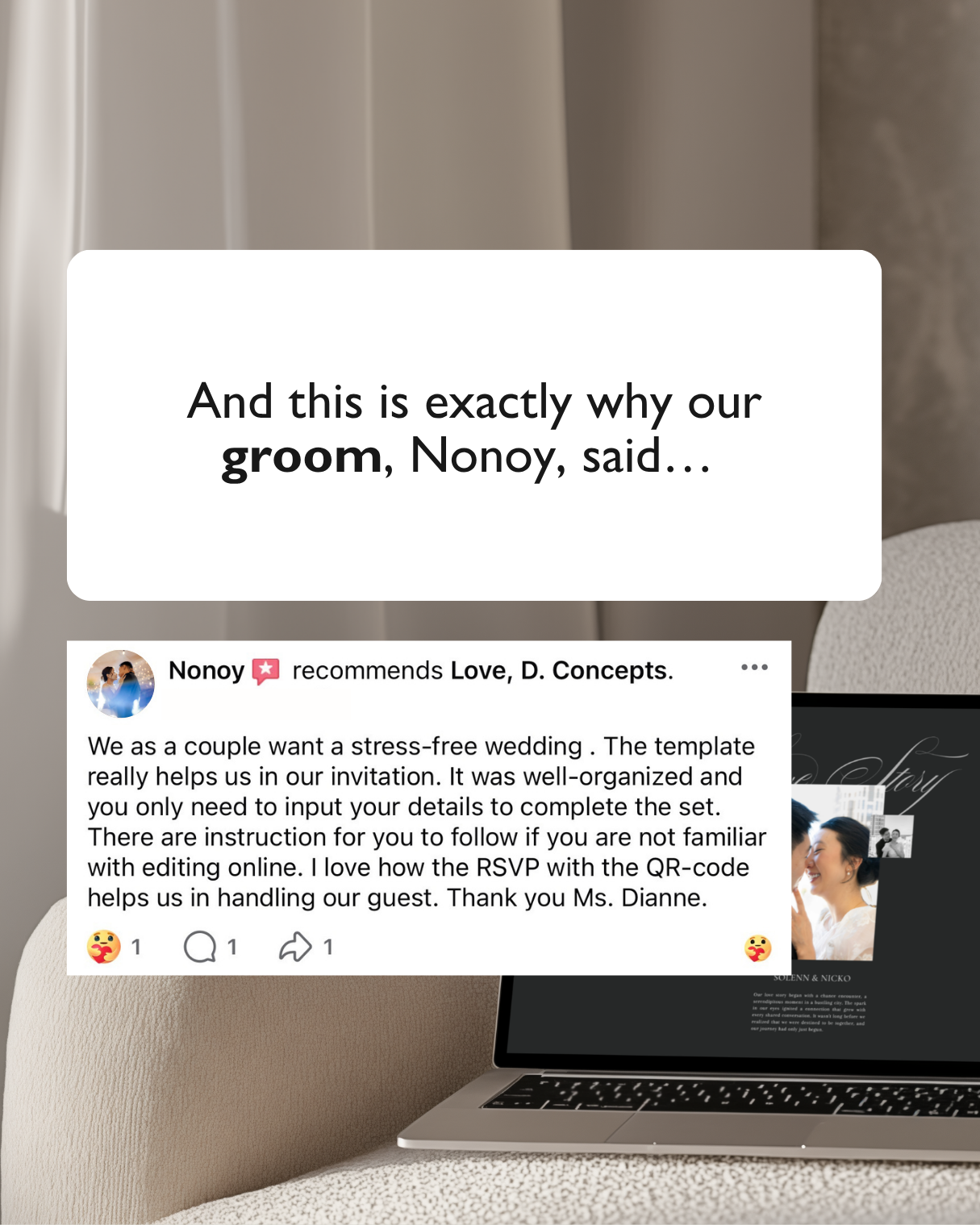
Not necessarily.
We know some couples prefer having an ‘smart RSVP’ system built directly into their wedding website.
For our websites, we prefer using Google Forms as a separate RSVP system.
You can embed the form into your website or link it through an RSVP button. The difference is that your responses are collected and stored separately in your Google account and linked Google Sheet.
Why does this matter?
If your website ever runs into technical issues (because, well, we’re talking about technology!), you can still access your guests’ responses through Google Forms or your linked Google Sheet.
It’s always better to have a separate place for your RSVP responses, just in case, rather than relying on just one platform for everything.
Plus, it’s:
- Easy to use for guests.
- Easy to monitor and track guest responses.
- Customizable to your wedding needs.
- Automatically connected to Google Sheets.
- No Google account required for guests, depending on the form settings.
- You’re using a tried-and-tested tool that has been helping people collect responses for years.
Your wedding website comes with a pre-set Google Forms RSVP template linked to a Google Sheet that automatically collects and organizes your guests’ responses. Simply duplicate the form to your own Google account, then personalize it with your wedding details.
What about privacy?
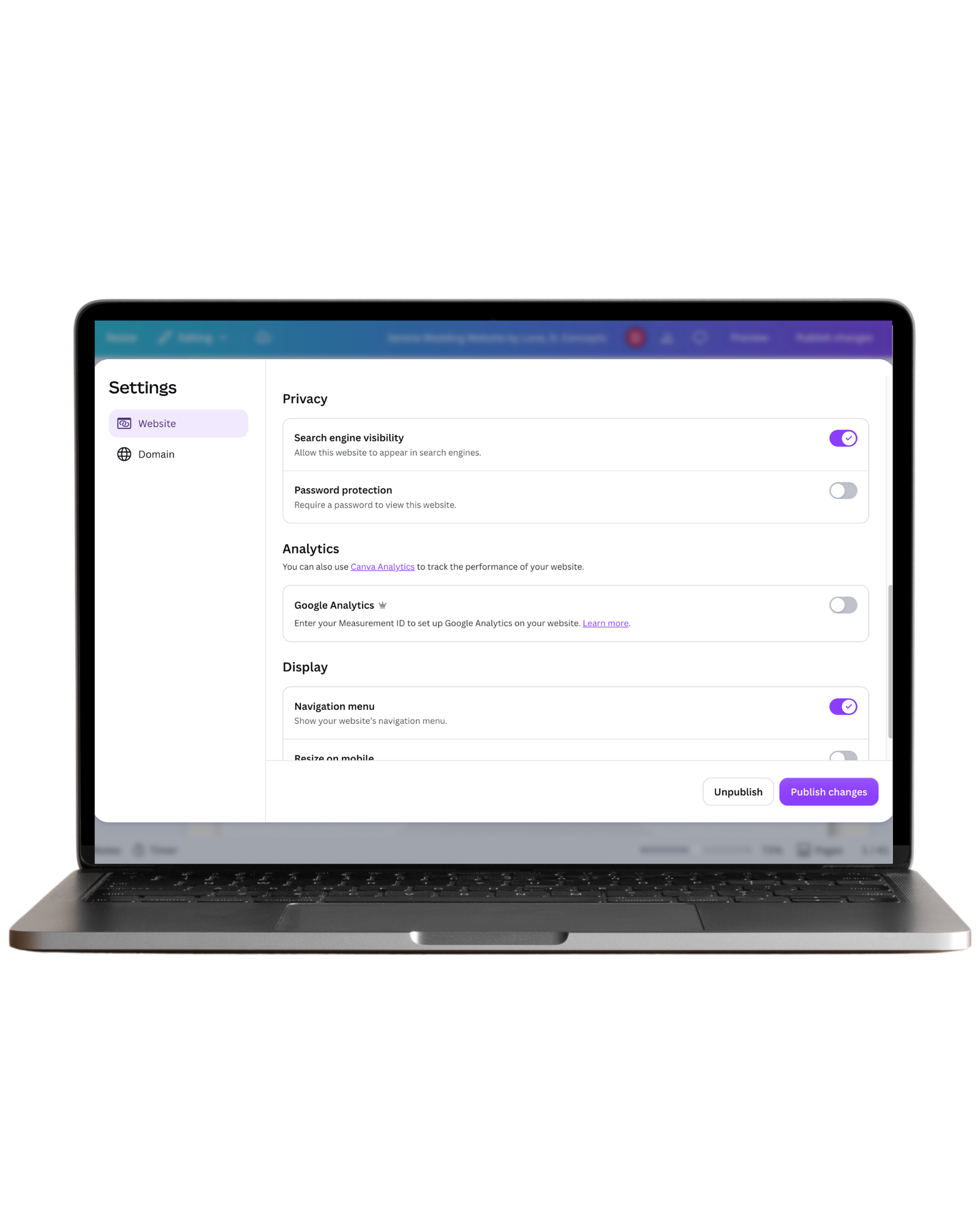
Your wedding doesn’t have to be open to everyone. You can password-protect your wedding website and share the password and RSVP link privately with your invited guests.
Just a tip from us after working with couples for years: it’s always best to be transparent about your guest arrangements. Politely remind your guests not to share the wedding website or invitation with others, and to respect the number of seats reserved for them.
You can even include a short FAQ page on your wedding website explaining that, due to venue capacity and seating limitations, guests are kindly asked to stick to their reserved seats.
How to politely limit guest list
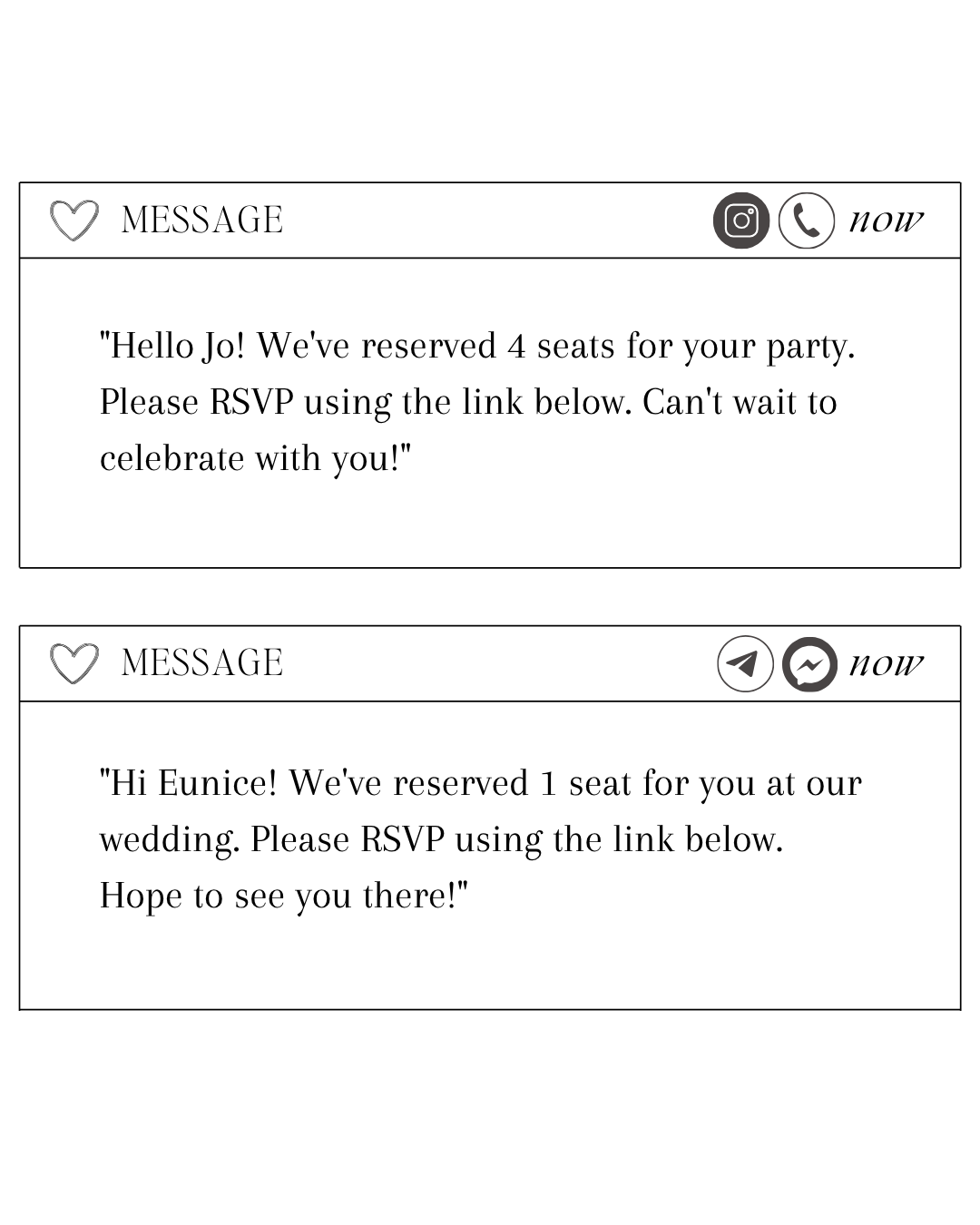
A little heads-up goes a long way. When sending your wedding website link, it’s helpful to let guests know how many seats have been reserved for them.
This helps avoid confusion when they submit their RSVP.
For an individual guest
“Hi [Guest’s Name]! We’ve reserved 1 seat just for you at our wedding. Please RSVP using the link below. We can’t wait to celebrate with you![Wedding Website URL]”
For a couple
“Hi [Guest’s Name]! We’ve reserved 2 seats for you and [Partner’s Name]. Please RSVP using the link below. Looking forward to celebrating together! [Wedding Website URL]”
For a family or larger group
“Hi [Guest’s Name]! We’ve reserved 4 seats for your family. Please include the full names of everyone attending when submitting your RSVP using the link below. We can’t wait to celebrate with you! [Wedding Website URL]”
Feel free to adjust these messages based on your guest list and the number of seats you’ve reserved.
Managing Guest List
There are two ways to collect RSVP responses. Choose the setup that works best for your guest list.
Option 1: One response per guest
This is best for couples who prefer individual responses.
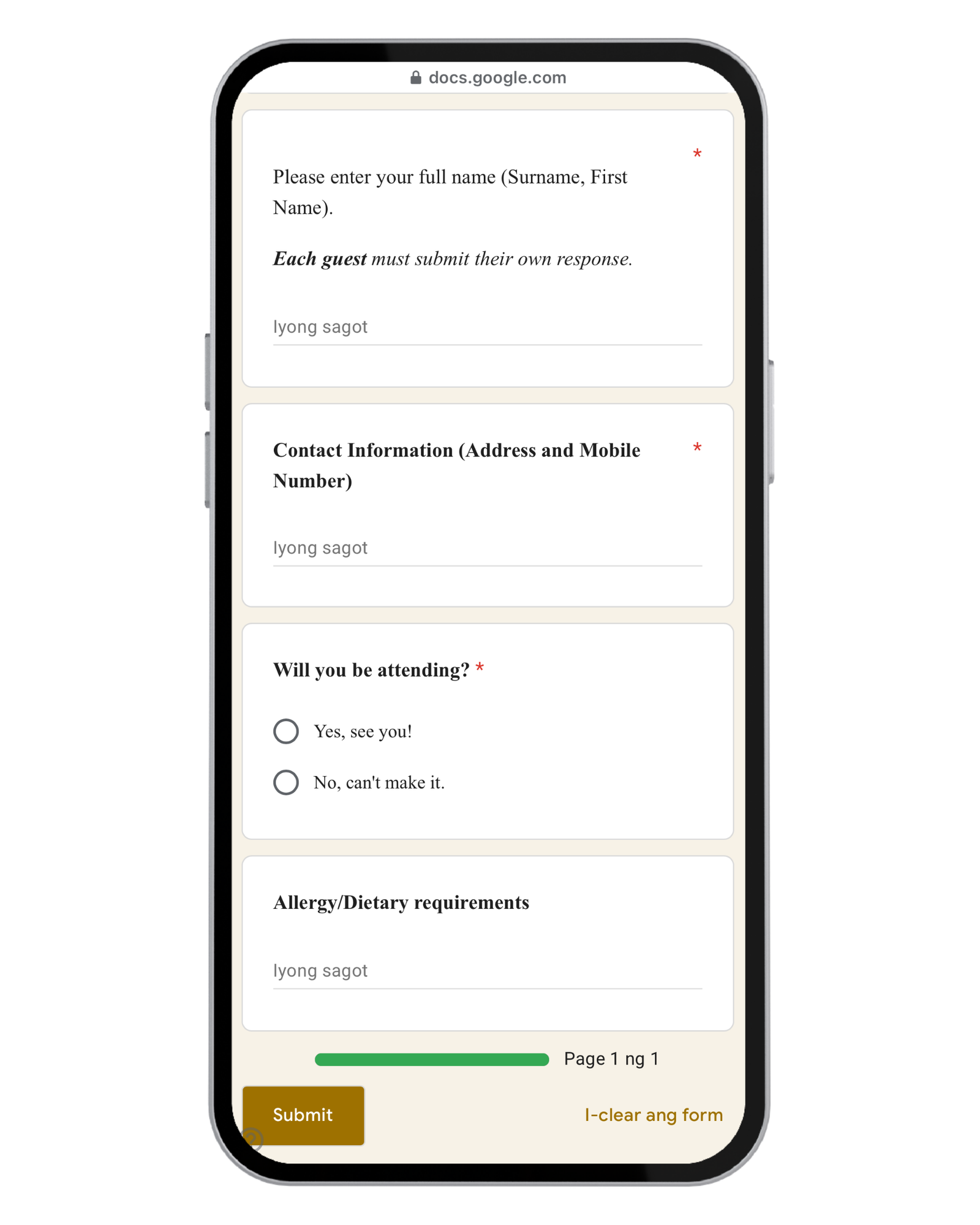
The form has one name question. That’s why:
- Each guest must submit their own RSVP, even if they’re part of a group.
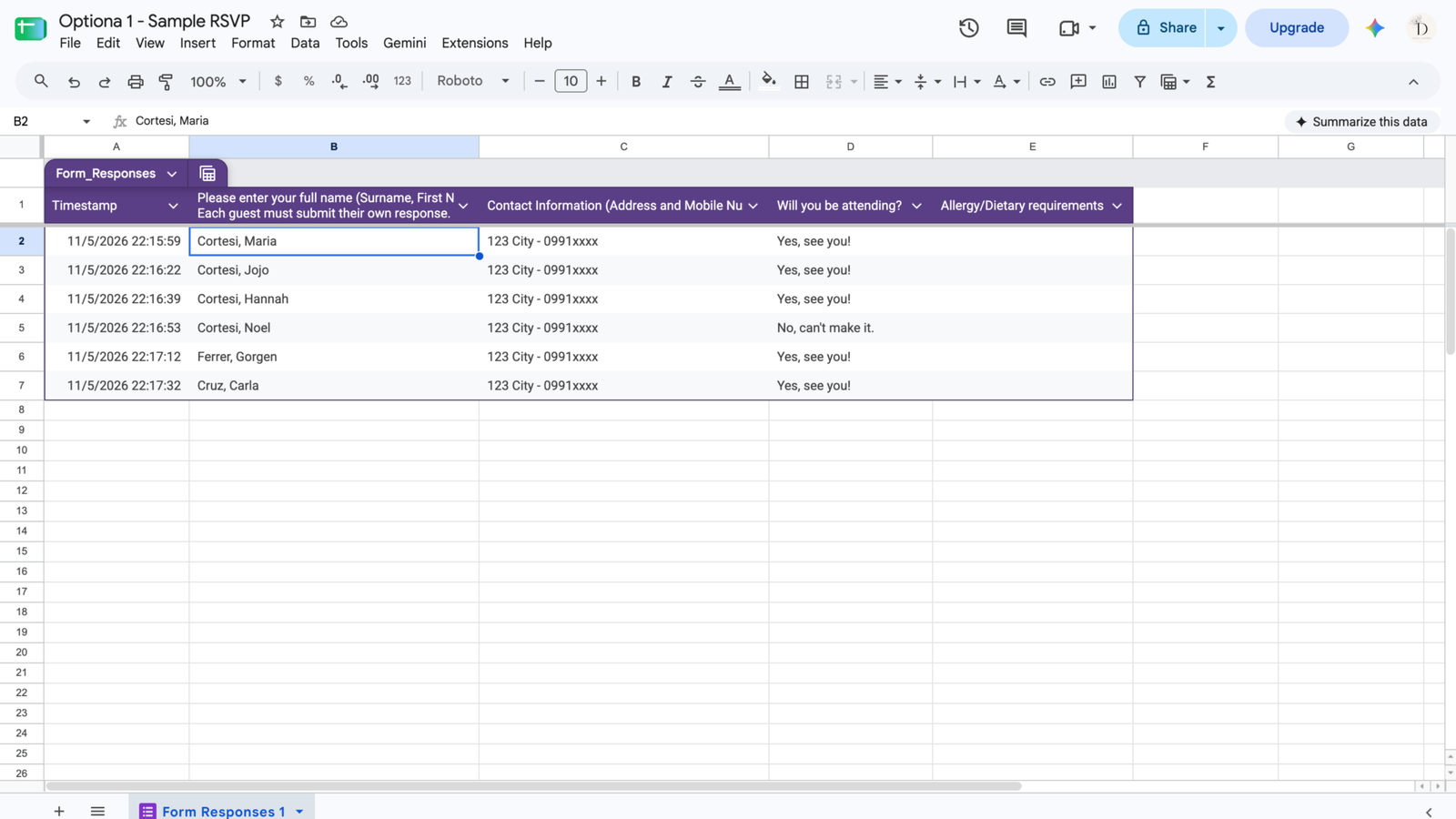
How will responses appear in your Google Sheet?
- One row per guest. Each person’s response is automatically recorded separately (feel free to zoom the image below).
Option 2: One response per group
Best for couples who want one person to submit the RSVP on behalf of their entire group. This is especially useful for family invitations or households with multiple guests, as they can simply enter everyone’s full names in one response.
This is also the option most of our clients use.
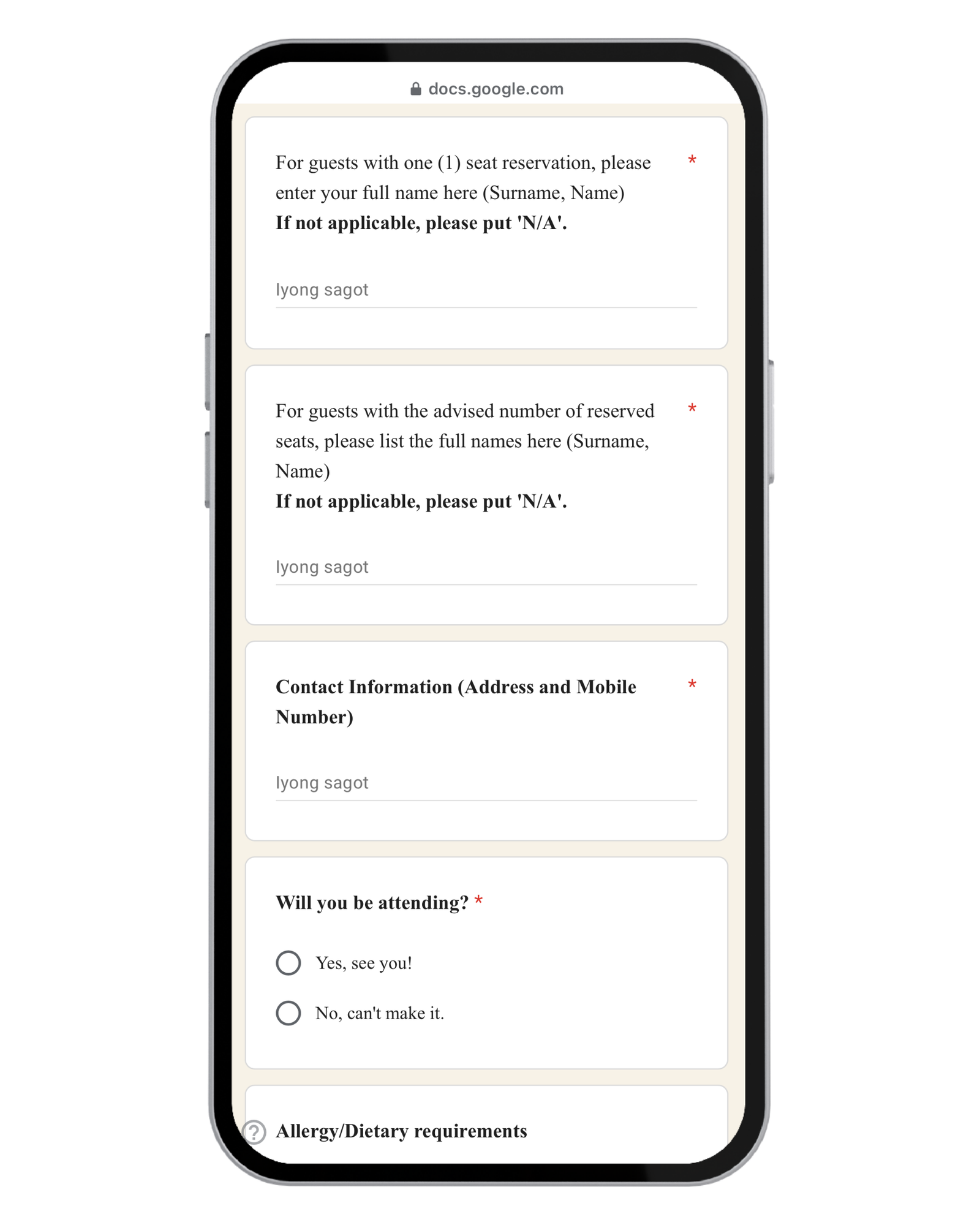
The form has two name questions:
- For guests with one reserved seat.
- For guests with multiple reserved seats, where they can list everyone’s names.
Guests only need to answer the applicable question and enter N/A in the other. Click here to see actual sample of the form.
How will responses appear in your Google Sheet?
- One row per submission.
- Names submitted together appear in the same cell.
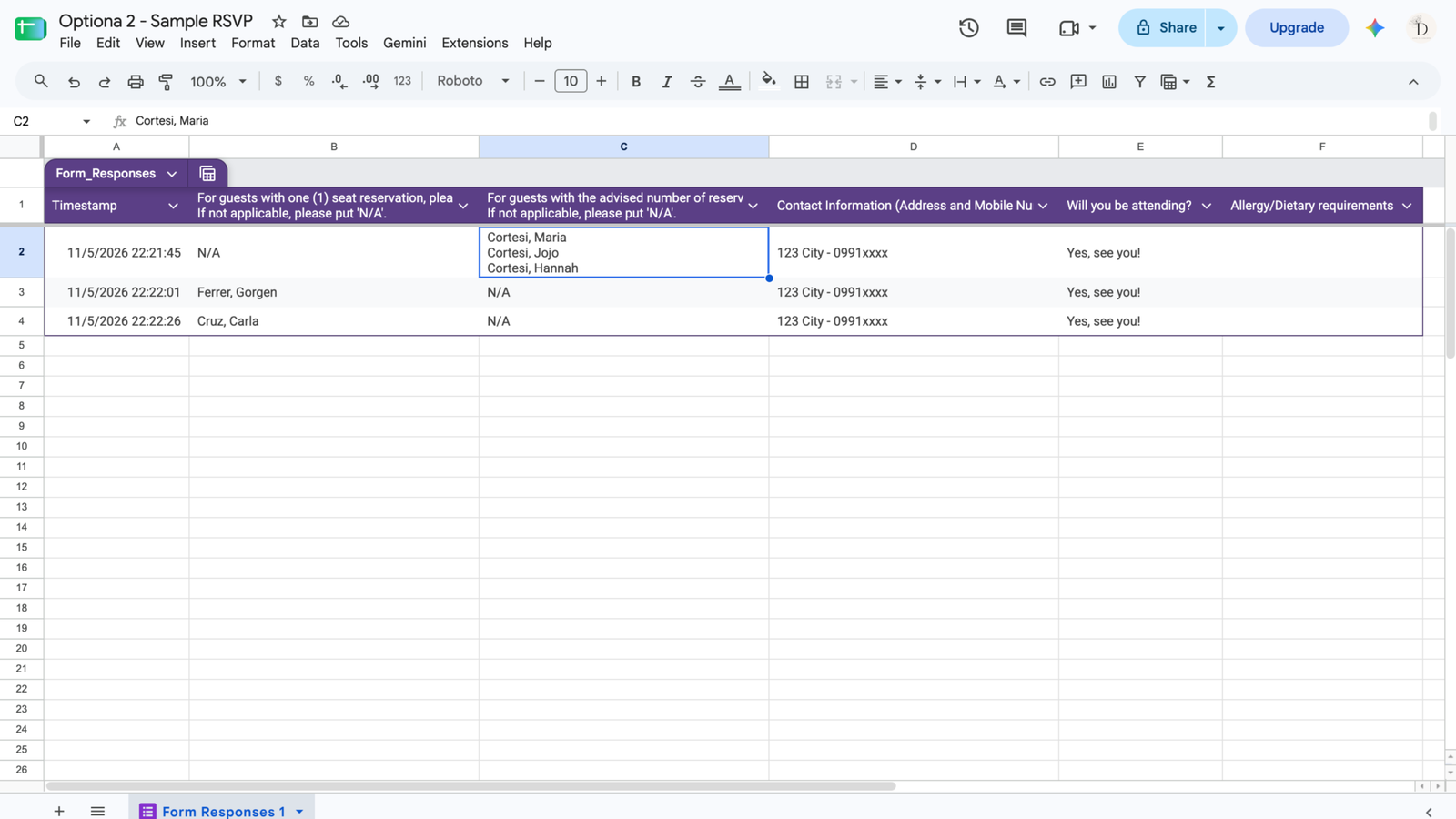
For Option 2, you may need to separate group names manually if you want to track each guest individually. However, most of our clients STILL prefer this option because it’s easier for guests, especially families or households with multiple attendees. They can simply enter everyone’s full names in one response (feel free to zoom the image below).
Can I use another RSVP platform?
Absolutely!
If you prefer an RSVP system you can use another service and add its RSVP link to your website.
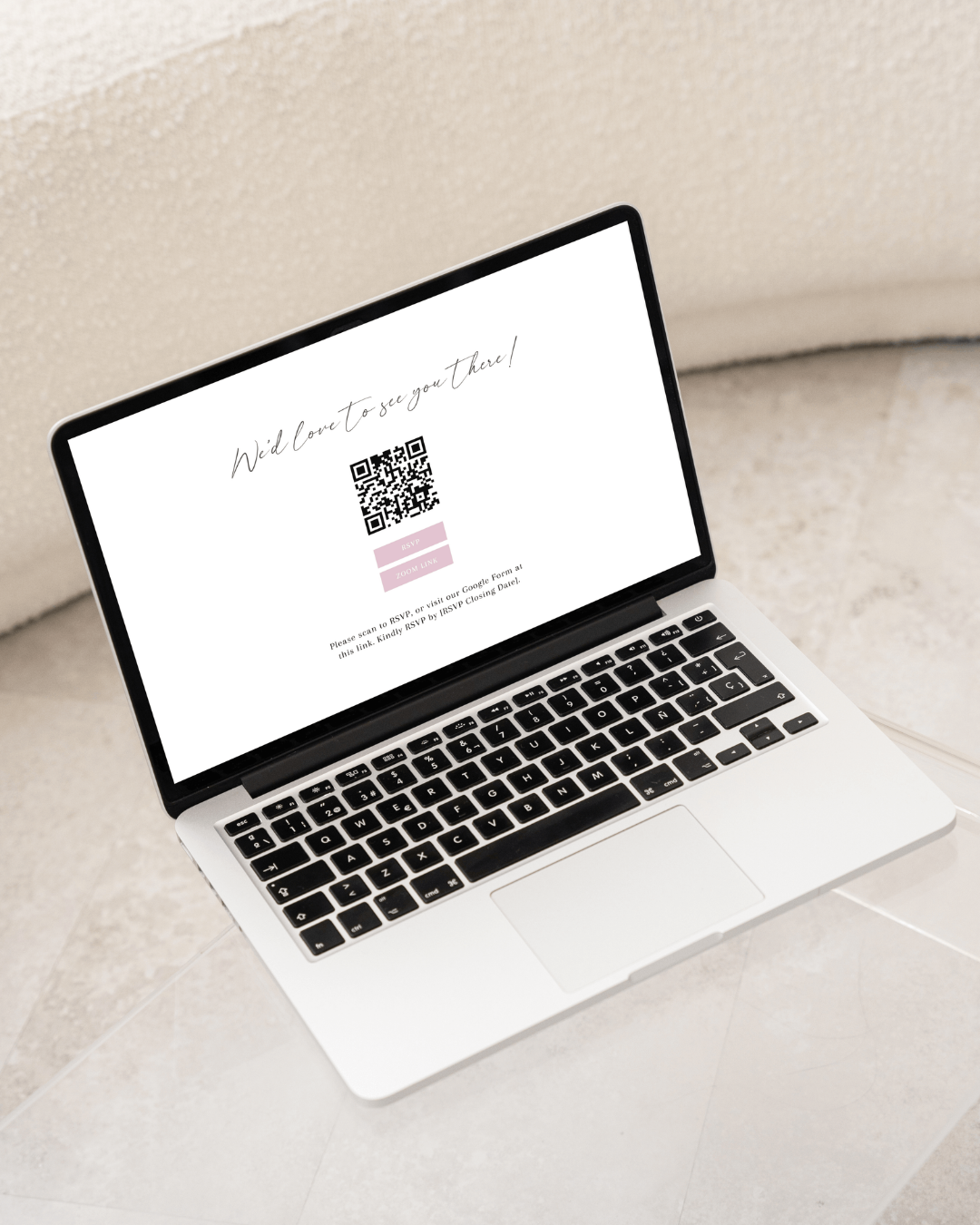
RSVP BuTTON + QR CODE
What’s included?
Every wedding website template comes with:
- A customizable Google Forms RSVP template.
- A linked Google Sheet for collecting responses.
- A guide to help you set up and manage your RSVPs.